TRIO’s Step-By-Step Guide For Nonprofits: Google Ad Grants Campaign (2026)
Does your nonprofit’s presence need a boost? The Google Ad Grants program is specifically designed to support nonprofit organizations like yours. This program provides opportunities to earn up to $10,000/month in ads on Google Search — including Performance Max campaigns — to raise awareness, attract donors and recruit new volunteers.
Need help applying for the grant? Download our helpful guide now.
Now that you’ve earned your grant, let’s set up your campaign.
But what is a Google Ad Grants campaign? That’s an easy one! A campaign is a set of related ad groups used to organize categories of products or services that you offer.
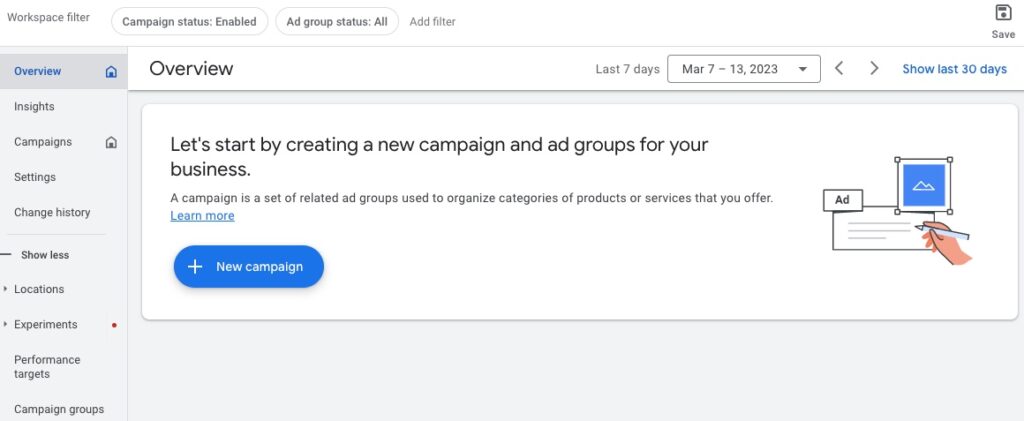
To establish yours, log into your Google Ad Grants account, go to your Overview dashboard and select ‘NEW CAMPAIGN’ or click the blue plus icon.
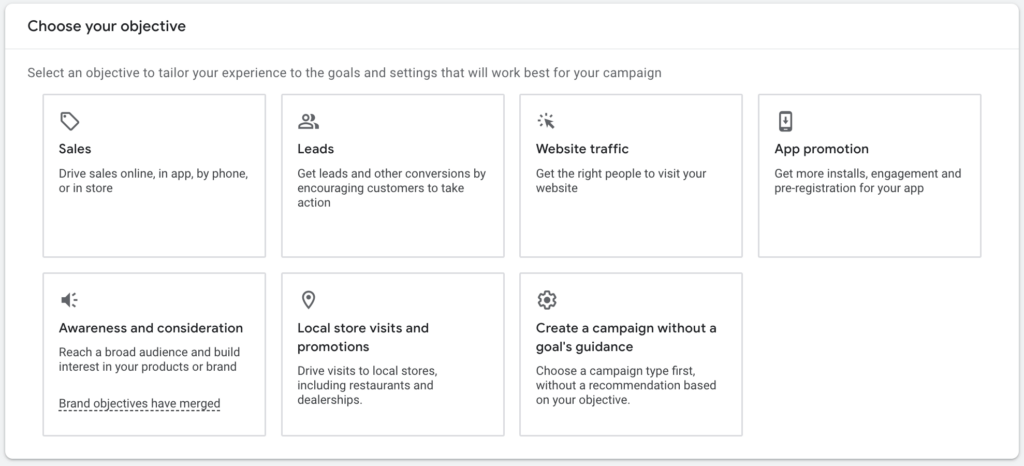
Next, choose the goal you want to achieve (you can only pick one goal for each campaign):
- Sales: Drive conversions online, in-app, by phone or in-store. Engage with customers who’ve already contacted you or are close to making a purchase decision.
- Leads: Encourage relevant customers to express interest in your products or services by signing up for a newsletter or providing their contact information.
- Website traffic: Drive potential customers to visit your website or a landing page.
We recommend you choose “Leads” or “Website Traffic” as the goal, since “Sales” language can be confusing in a nonprofit context.
Unsure where to start? You can also begin without an objective for more freedom to experiment with your campaign.
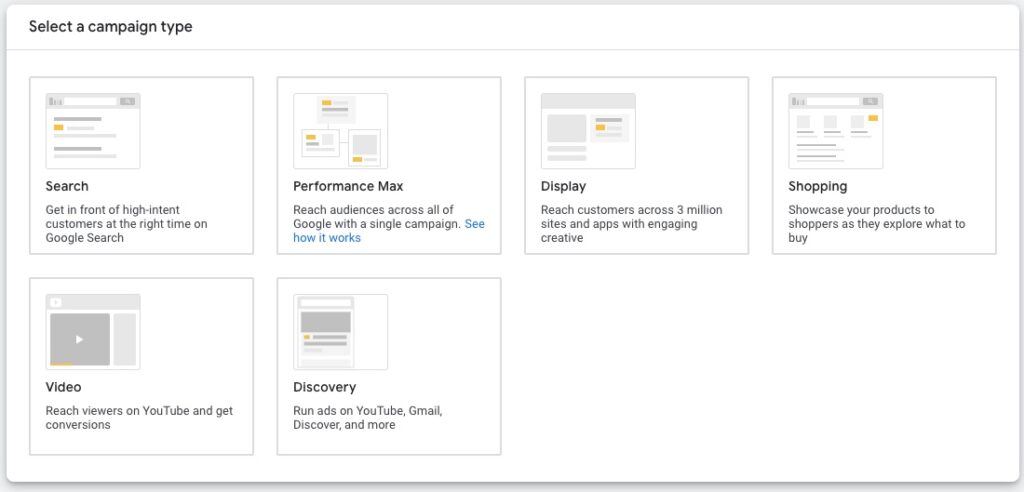
Although there are multiple formats, Google Ad Grants cover Search ads and Performance Max campaigns. You will want to select this option and enter additional information about your business. Changes to the campaign are automatically saved as a draft.
Choose your audience and location targeting.
Your Google Ad campaign should align with your marketing goals. Consider the audience who might be ready to buy your product, sign up to learn more about your business, or visit your website.
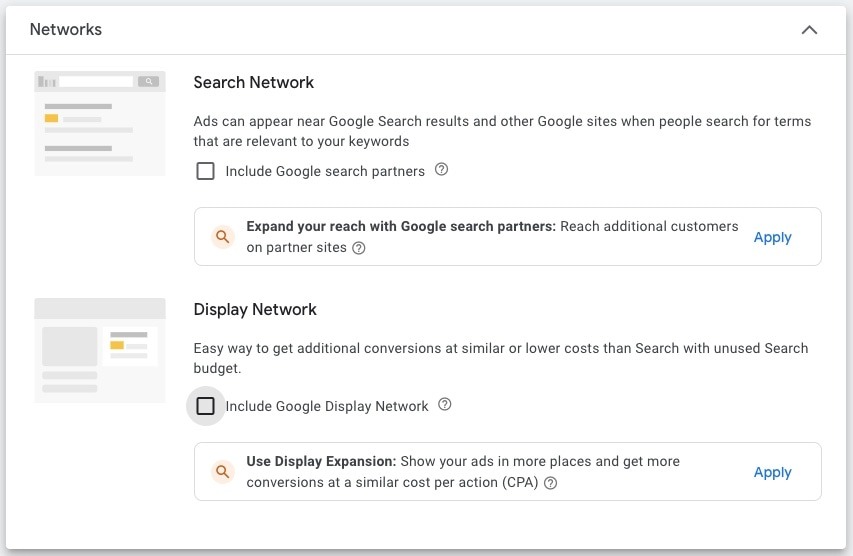
- Deselect the boxes for Google Search Partners and Display Network. With the grant, your ads can only appear on Google.com. (Since you are operating in a Grant Account, you will likely be unable to check these boxes.)
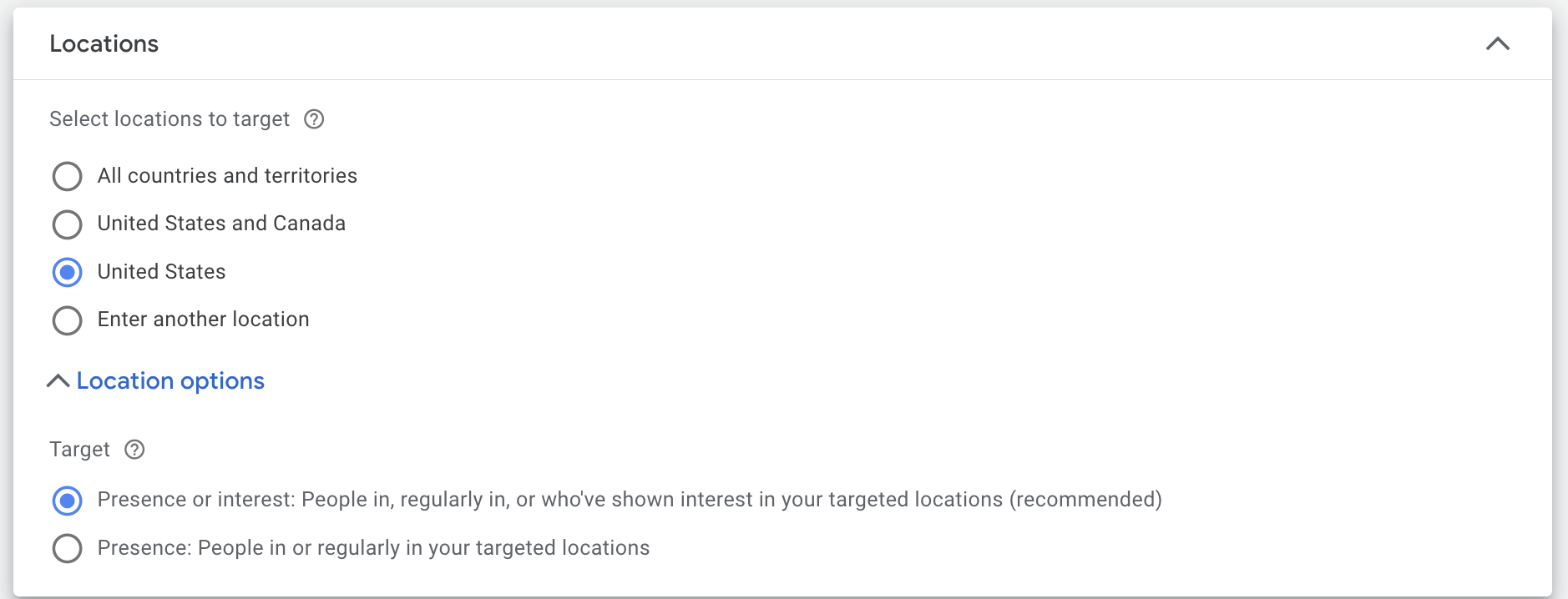
- Select the geographic locations where your ads will appear or places you’d like to exclude. Only choose the location your nonprofit serves. Targeting options include countries, areas within a country, a radius around a location or location groups. Selecting “all countries and territories” is not allowed with Google Ad Grants. For compliance, your ads must be targeted to the locations your nonprofit actually serves. Selecting overly broad geography is a compliance risk, not just a poor strategic choice.
- Pick the languages you’d like to target. The ads and keywords you’ll create later will be in the languages you select during this step.
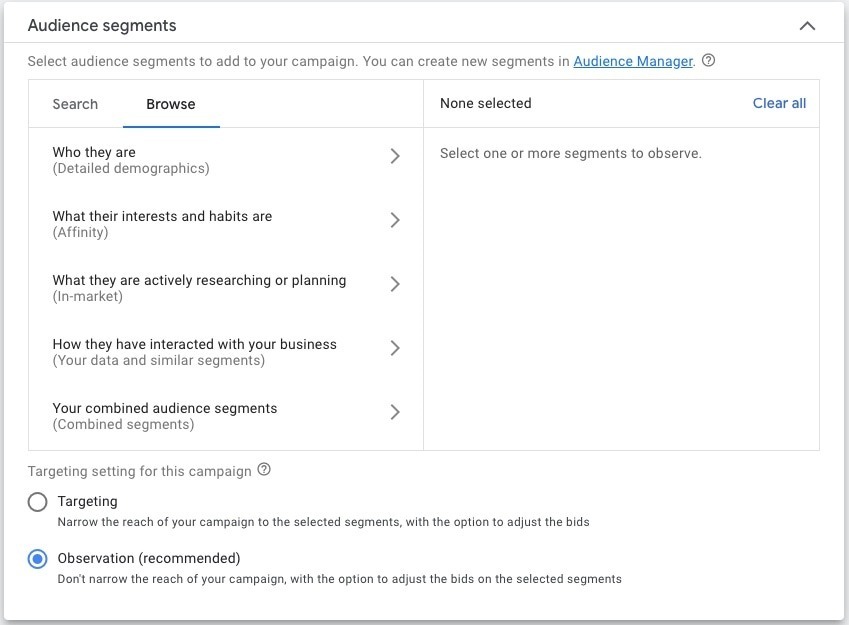
- Narrow your audience based on demographics, interests, online activity and remarketing.
You’re halfway there! Let’s build your ad groups.
Google Ad Grants accounts need to have at least two ad groups under each campaign. These ad groups act as “containers” for all of your close-knit keywords. To create your ad groups:
- Decide on an ad group name. This should be the theme of the keywords you plan to use.
- Add your keywords. If you haven’t researched relevant topics or if you don’t have much time, use Google’s Keyword Planner tool. By default, your keywords will match a broad set of related searches. Keywords with a Quality Score of 1 or 2 must be paused or removed. Add the following characters to your keywords to change how they match searches:
- Phrase match: Add quotation marks “ ” around your keyword to match it to a phrase and its close variations.
- Exact match: Add brackets [ ] around your keyword to more closely target exact searches.
- Negative keywords: Add a minus sign – in front of your keyword to exclude searches.
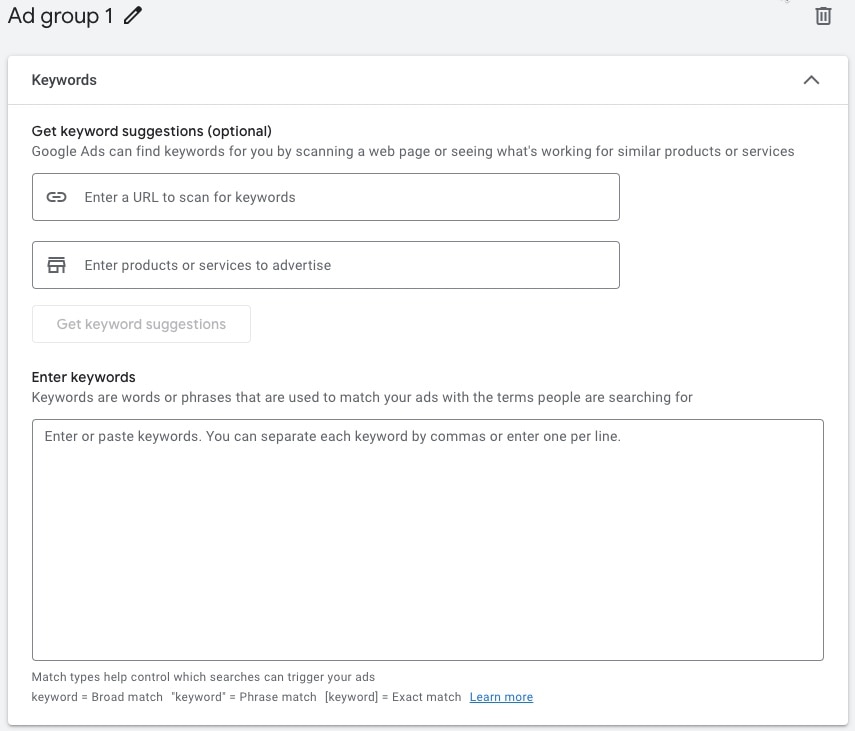
Example: Your nonprofit serves the Charleston area through many services. You create an ad group named “Food Pantry” where you’d target keywords like “charleston food pantry,” “lowcountry food donations” and “mount pleasant food drive.” You’d then create ads and link to that section of your website.
Continue building your ads, but remember to repeat this process for your second ad group. As a helpful note: Avoid single-word keywords (except branded terms) — this is a compliance rule. (We’ll cover compliance rules in full below, but it’s helpful to know if you’re building along now!)
Create your ads!
When creating Search ads in Google Ad Grants, you’ll be working exclusively with Responsive Search Ads (RSAs) — the only Search ad format Google currently supports. Instead of writing one fixed ad, you provide Google with a pool of headlines and descriptions, and Google’s machine learning automatically tests different combinations to find what performs best for your audience.
Here’s what to fill out for each RSA:
- Insert the URL where you want to send anyone who clicks your ad.* This must be a page on a domain your nonprofit owns — no third-party links or social media pages.
- You can customize the URL that shows up on your ad by changing the display path. The display URL will not affect the page that people land on when clicking your ad. (e.g., yournonprofit.org/volunteer)
- Write up to 15 headlines (each up to 30 characters). Google will mix and match up to three at a time in your live ads. Tips for strong headlines:
- Include your primary keywords in at least 2-3 headlines.
- Vary your messaging — lead with your mission, a call to action, your location and your program name across different headlines.
- Avoid repeating the same idea across multiple headlines since Google may show them together.
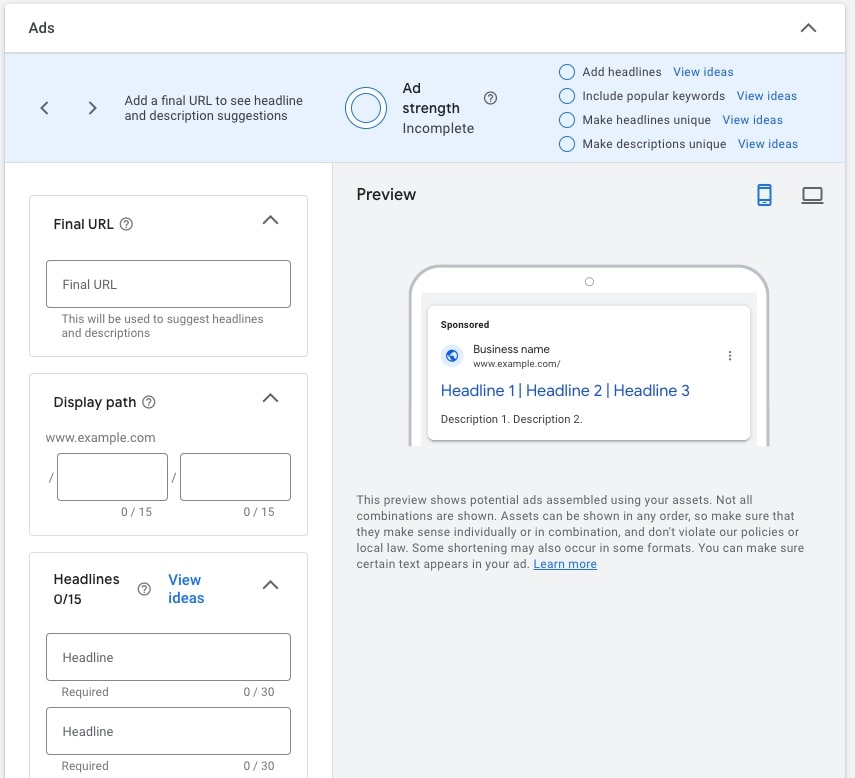
- Write up to 4 descriptions (each up to 90 characters). Google will display up to two at a time. Use these to expand on your headlines. Explain your mission, highlight impact or include a clear call to action like “Donate today” or “Find resources near you.
- As you build your RSA, Google will show an Ad Strength indicator (Poor → Average → Good → Excellent). Aim for at least “Good.” The most common way to improve your score is to increase the variety and uniqueness of your headlines and descriptions.
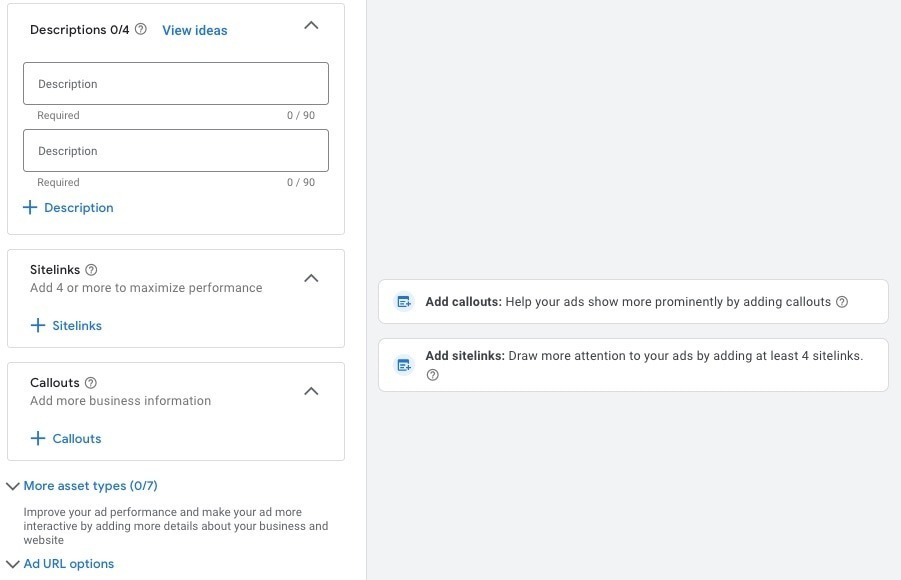
Example: Your nonprofit helps connect Charleston-area families to food resources. Your headlines might include “Charleston Food Pantry,” “Free Groceries in Mount Pleasant,” “Serving Lowcountry Families,” “Find Food Assistance Today,” and “Donate to Fight Hunger Locally.” Your descriptions might read “We connect families in need with fresh food resources across the Lowcountry. Find a location near you” and “Your donation feeds Charleston families. Learn how to give, volunteer or find support.”Google recommends creating at least two RSAs per ad group for compliance and testing different messaging approaches between them. - Lastly, add sitelink, callout and call assets related to your business and website. Assets give searchers more ways to engage with your ad directly from the search results page. Google Ad Grants accounts are required to have:
Sitelink assets (minimum 2): Link to specific, relevant pages on your site, such as your donation, volunteer or upcoming events pages.Callout assets (minimum 2): Short phrases that highlight what makes your nonprofit stand out, like “Serving the Lowcountry Since 1998” or “100% of Donations Fund Programs.”Structured snippet assets (minimum 1): Showcase a list of your programs, services, or focus areas.
Add these under the “Assets” section in your Google Ads account. The more complete your assets, the more space your ad takes up in search results and the better it tends to perform.
Once your first ad is complete, click ‘DONE’ and repeat the process for your second ad before moving on.
*Note: All ad destinations must be pages on a domain your nonprofit owns and has registered with Google. Ads cannot link to third-party sites, including your social media profiles.
Set a daily budget and publish.
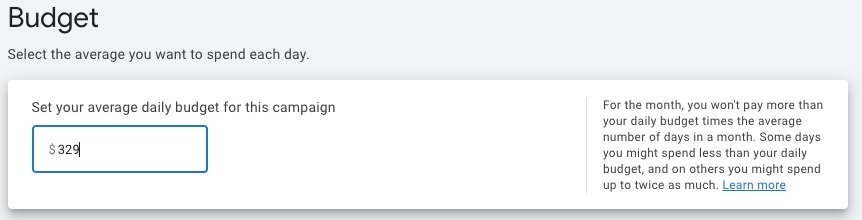
All Google Ad Grants accounts are limited to a monthly budget of $10,000, so give your campaign a daily budget of $329 (if you are only going to run one campaign). Your campaign goals will determine how this money is spent. Want sales or leads? You might focus on Conversions. Want website traffic? You might focus on Clicks.
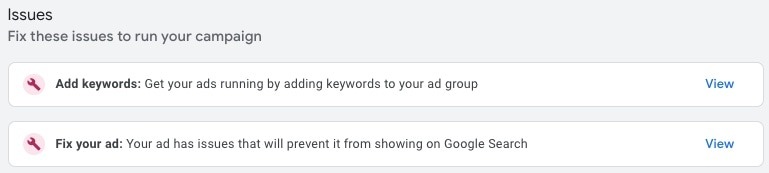
Review your campaign one more time for any errors. Google will let you know if there are issues that need to be fixed. Once you’re happy with your campaigns, ad groups, keywords and ads, publish them for your audience to see!
Pro Tip: Before setting your bidding strategy, make sure your GA4 conversion tracking is connected to your Google Ads account. Without it, Smart Bidding cannot function properly, and your account may fall out of compliance.
Google’s rules to maintain eligibility include…
To maintain the grant, your nonprofit must continually follow Google’s Ad Grants Policy Compliance Guide. Failure to comply may lead to the suspension of your account. These rules include the following:
- Must log into the account at least once a month; must implement changes to the account at least once every 90 days.
- No single-word keywords permitted.
- No overly generic keywords permitted.
- Keywords must have a Quality Score higher than 2. You must pause or remove low-scoring keywords. (You can set up an automated rule that pauses all keywords when they have a low Quality Score.)
- Keywords must be mission-related and highly relevant. Ads must align closely with keywords and landing pages.
- Must maintain a 5% click-through rate each month. Falling below 5% for two consecutive months triggers a suspension.
- Must have conversion tracking (Google Ads + GA4) in place and at least one meaningful conversion per month.
- Must have at least 2 ad groups per campaign.
- Must have at least 2 ads per ad group.
- Must have at least 2 sitelink assets (formerly known as “ad extensions”).
- Must respond to an annual program survey.
- No use of Google AdSense ads on your nonprofit’s website.
- Must direct all ads to domains owned by the nonprofit — no third-party links.
- Website must use HTTPS.
- Website cannot (primarily) promote commercial activity.
In addition, do NOT create a separate Google Ads account; Google provides one specifically for the Grant.
How can Google Ad Grants help nonprofits?
The $10K/month can only be used for Google Search Ads (and Performance Max).
Here’s what’s allowed:
- Donation campaigns (drive traffic to donation pages)
- Volunteer recruitment
- Event promotion (fundraisers, awareness events, galas)
- Newsletter signups/lead generation
- Educational content and program promotion
- Brand awareness for the organization’s mission
- Performance Max campaigns
Team TRIO is here to help!
Since Google Ad Grants are for the actual ad spend, Google does not provide implementation as part of their program. Don’t have time? Don’t know how? Don’t want to deal with the digital headache? Don’t worry! Our digital marketing team can do it for you. Contact us to learn more!

Digital Marketing Specialist
Keep reading...
Is It Okay to Repurpose Marketing Content?
If you’ve written a blog, designed ad campaigns or spent time making social media content, you know these things take time to do right. Once they’re completed […]

A Closer Look at TRIO’s 25th Anniversary Logo
In 2001, TRIO began with a simple belief: there is power in three. From the start, we focused on three core disciplines: marketing, events and web, knowing […]